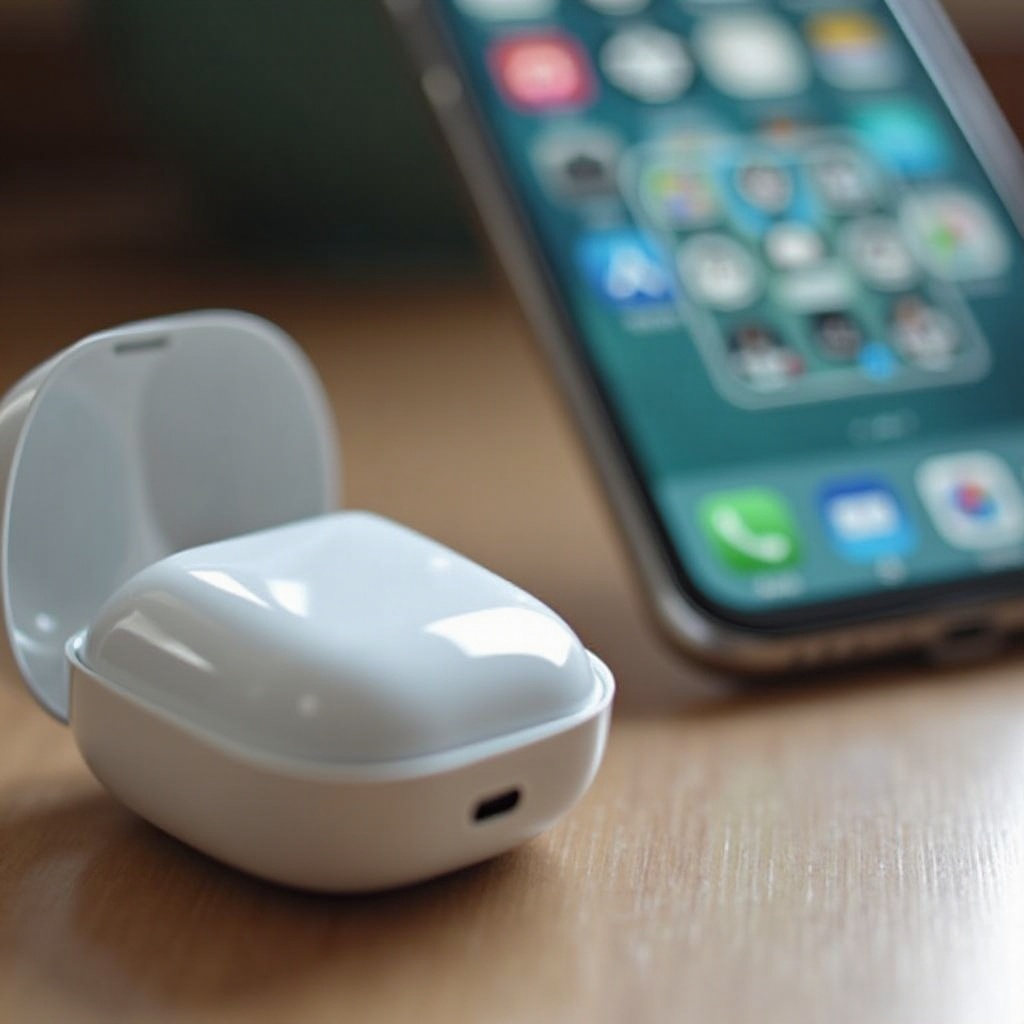
Pairing your Tozo earbuds with an iPhone is straightforward and can significantly enhance your listening experience. Known for their exceptional audio quality, Tozo earbuds provide seamless connectivity options for iPhones. Let this guide show you the exact steps needed to achieve an effortless connection.
Introduction
Tozo earbuds have captured the attention of many due to their excellent sound performance and sleek design. With these earbuds, you gain the advantage of wireless freedom and an enriched audio experience that ties perfectly with iPhone usage. Understanding the connection procedure will aid in quickly linking your devices. This comprehensive guide offers you all the information needed for quick and smooth pairing.
Why Choose Tozo Earbuds for Your iPhone?
Tozo earbuds are an ideal choice for iPhone users, thanks to their user-centric features such as long battery life, premium sound, and ergonomic design. These elements enhance user experience immensely, making the pairing process with iPhone seamless and effective. Tozo’s advanced Bluetooth technology ensures compatibility with various iPhone models, allowing users to enjoy a smooth connection with minimal effort.
Understanding how these earbuds align with iPhone functionalities can ease the user’s journey to seamless music or call experiences. Ensuring your devices are ready will lead to a smooth connection, so prepare before proceeding.

Preparing for Connection
Before starting the connection process, ensure all prerequisites are met:
- Ensure that your iPhone’s iOS is updated to the latest version for compatibility.
- Charge your Tozo earbuds fully to prevent interruptions during pairing.
- Verify that Bluetooth is enabled on your iPhone by checking the ‘Settings’ app.
Having these elements in place ensures that your connection attempt is set up for success.
Step-by-Step Guide to Connecting Tozo Earbuds to iPhone
Follow these instructive steps to pair your Tozo earbuds with your iPhone:
- Activate Pairing Mode on Tozo Earbuds:
-
Take the earbuds out of the case. They should enter pairing mode automatically. If needed, press and hold the multi-function button until you observe flashing lights.
-
Connect via iPhone’s Bluetooth Settings:
- Open the ‘Settings’ app on your iPhone.
- Tap on ‘Bluetooth’ and make sure it is switched on.
- Locate ‘Tozo Earbuds’ under ‘Other Devices’ and tap to connect.
-
The earbuds will then move to ‘My Devices’ upon successful pairing.
-
Confirm Successful Pairing:
- Listen for a confirmation sound in the earbuds, and you may also receive an on-screen notification on your iPhone.
Your devices should now be connected, enabling a seamless auditory experience. However, if you face any connectivity issues, the subsequent troubleshooting section offers solutions.

Troubleshooting Common Connection Issues
Encountering issues during pairing is not uncommon, but resolving them is straightforward:
- Address any Bluetooth interference by disconnecting other active Bluetooth devices. Try to reconnect your Tozo earbuds with the iPhone.
- Resolve audio dropouts by maintaining close proximity between your earbuds and iPhone, especially during the initial pairing phase.
- Consider resetting your Tozo earbuds by placing them in the case and deleting the Bluetooth link in the iPhone settings before attempting to reconnect.
Once common issues are addressed, enhancing your audio experience further can provide even greater satisfaction.
Enhancing Your Audio Experience with Tozo Earbuds
To make the most of your Tozo earbuds, utilize these enhancements:
- Download the Tozo app to access advanced features and firmware updates, which can significantly improve performance.
- Adjust your iPhone’s sound settings to optimize quality for different audio experiences, whether enjoying music or podcasts.
Connecting and optimizing your Tozo earbuds with your iPhone will enhance your overall enjoyment and audio performance.
Conclusion
Linking Tozo earbuds to an iPhone is made simple through this guide. With proper preparation and a few easy steps, your devices can be paired swiftly. Armed with quick troubleshooting solutions, users can resolve issues effortlessly, ensuring a flawless listening journey. Access the rich features of Tozo earbuds for enhanced audio interactions.
Frequently Asked Questions
Can Tozo earbuds connect to multiple devices simultaneously?
No, Tozo earbuds typically connect to one device at a time. Disconnect from the current device before pairing with another.
What should I do if my Tozo earbuds won’t connect to the iPhone?
Ensure your earbuds are in pairing mode and close to your iPhone. Check that Bluetooth is enabled and no other devices are interfering.
How do I update the firmware on my Tozo earbuds?
Update firmware through the Tozo app, available in your app store. Follow in-app instructions to complete the update process.