Introduction
AirPods have surged in popularity, cherished for their design and sound quality. However, Android users might face challenges with volume control. While designed primarily for Apple devices, AirPods can also work well with Android by employing some tweaks. This guide unveils strategies to turn up AirPods volume on Android, allowing for an optimal listening experience.
Understanding AirPods Volume Control on Android
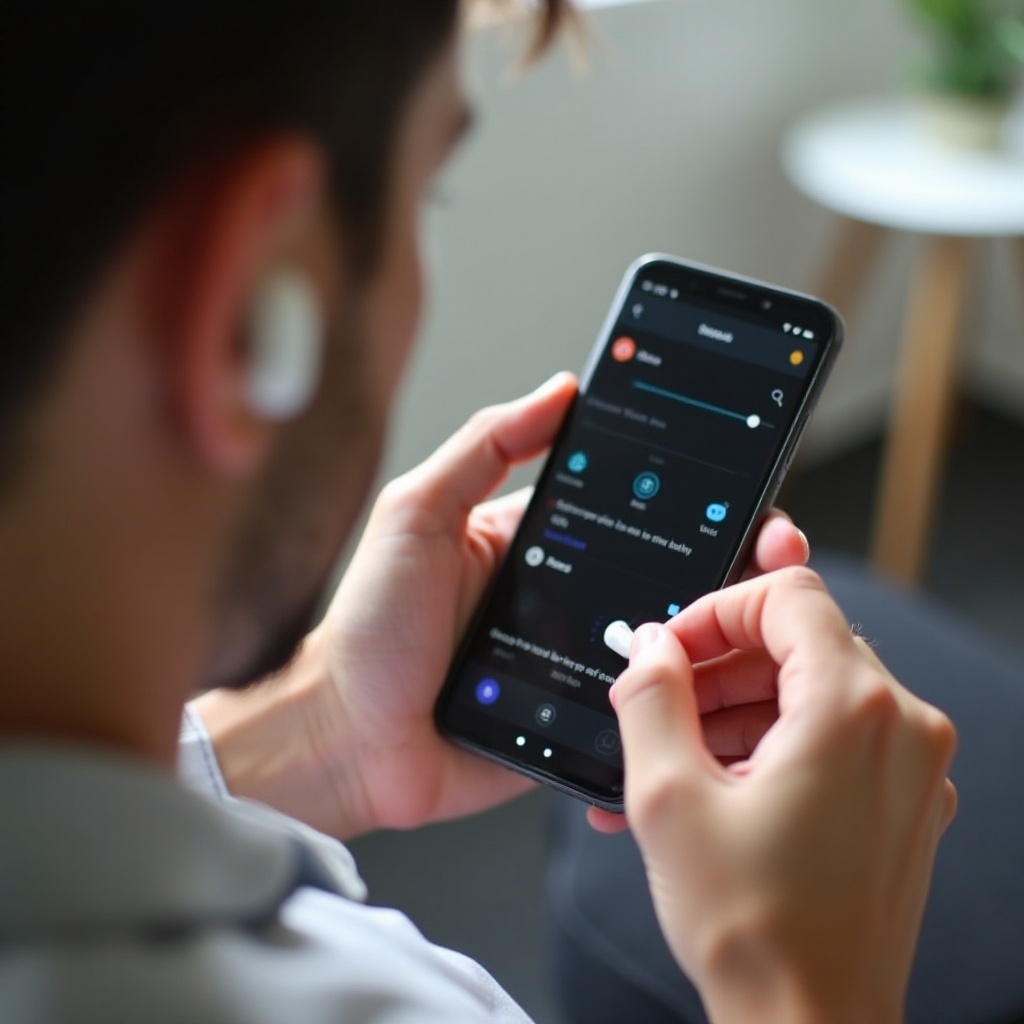
Understanding how AirPods interact with Android is crucial. Unlike Apple devices that automatically adjust settings for AirPods, Android lacks this integration. This discrepancy can result in users experiencing diminished volume levels.
How AirPods Work on Android Devices
- AirPods connect via Bluetooth, ensuring basic audio transmission.
- The automatic optimizations found in Apple devices are absent, impacting volume control.
Common Volume Issues Faced by Android Users
- The maximum volume feels lower than expected.
- There can be connectivity disruptions affecting sound quality.
Recognizing these factors helps users tackle volume challenges, leading us to explore actionable steps for adjustment.
Step-by-Step Guide to Adjusting Volume
Android devices offer practical methods to manually boost AirPods’ volume, enhancing your audio experience.
Method 1: Using the Android Device’s Volume Controls
- Connect AirPods to the Android device via Bluetooth.
- Use the device’s volume buttons to incrementally increase volume.
- Go to the ‘Settings’ and explore the ‘Sound’ or ‘Volume’ section to fine-tune media volume settings.
Method 2: Utilizing Sound Settings for Better Output
- Access the ‘Settings’ menu on your Android device.
- Navigate to ‘Sound’ or ‘Audio Effects.’
- Modify audio properties to optimize sound output.
These methods underscore the value of using internal settings, guiding us toward the potential of apps for further enhancement.
Third-Party Apps for Enhanced Volume
With third-party apps, users have opportunities to amplify volume and customize audio settings.
Best Volume Booster Apps for Android
- Volume Booster GOODEV: A user-friendly app that amplifies sound levels effectively.
- Equalizer FX: Enables users to adjust frequencies for enhanced audio output.
How to Safely Use Third-Party Apps
- Ensure apps are downloaded from reputable sites like Google Play Store.
- Be mindful of volume levels to prevent potential damage to audio equipment or hearing.
Maximizing AirPods’ performance with apps and settings combines well with advanced audio features, which we explore next.
Advanced Audio Settings and Enhancements
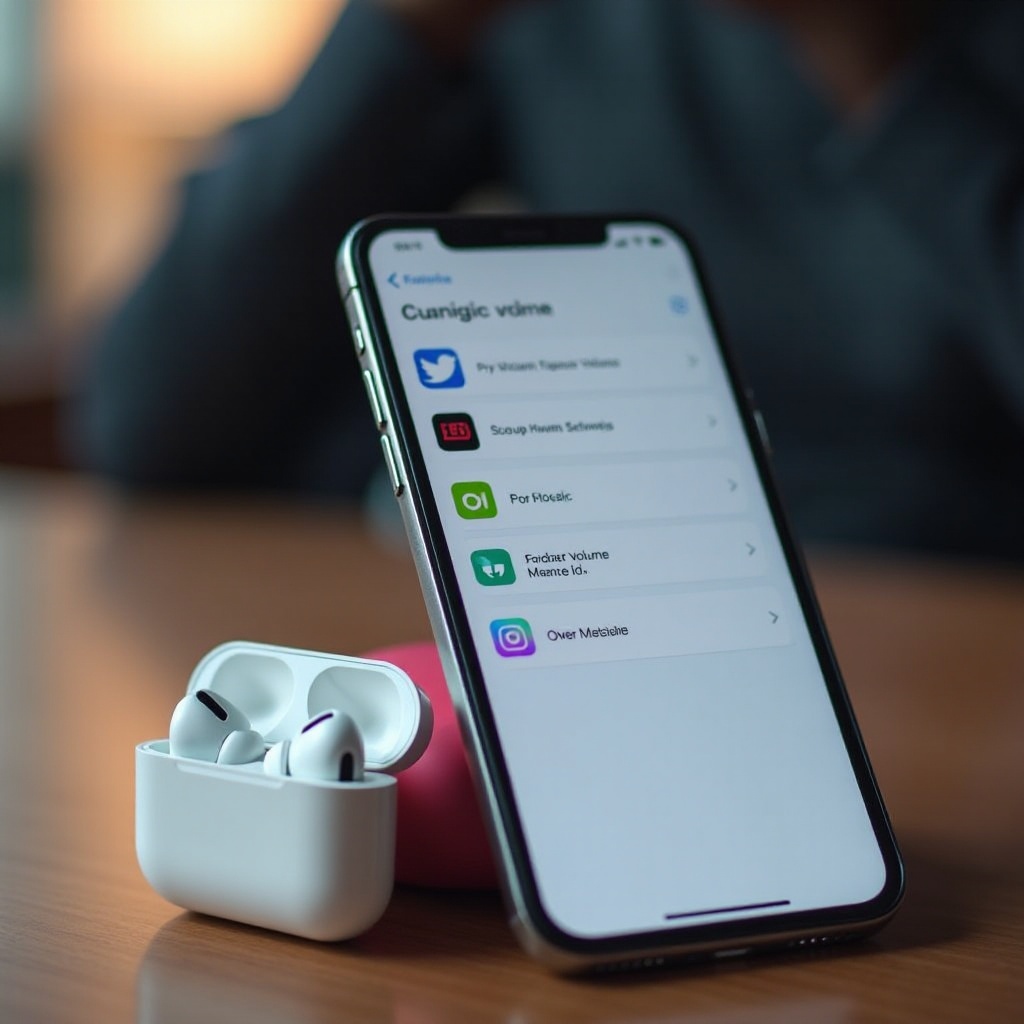
Android hosts built-in capabilities that, when used effectively, can significantly upgrade your audio quality.
Exploring Android Equalizer Settings
- Open ‘Settings’ and go to ‘Sound’ settings.
- Select ‘Equalizer’ and adjust tones for clearer sound.
Customizing Bluetooth Settings for Improved Sound
- Ensure your Bluetooth version is updated for maximum efficiency.
- Delve into Bluetooth settings to find options boosting audio quality.
Combining advanced settings with previous methods lays a strong foundation for troubleshooting any persistent issues.
Troubleshooting Common Volume Issues
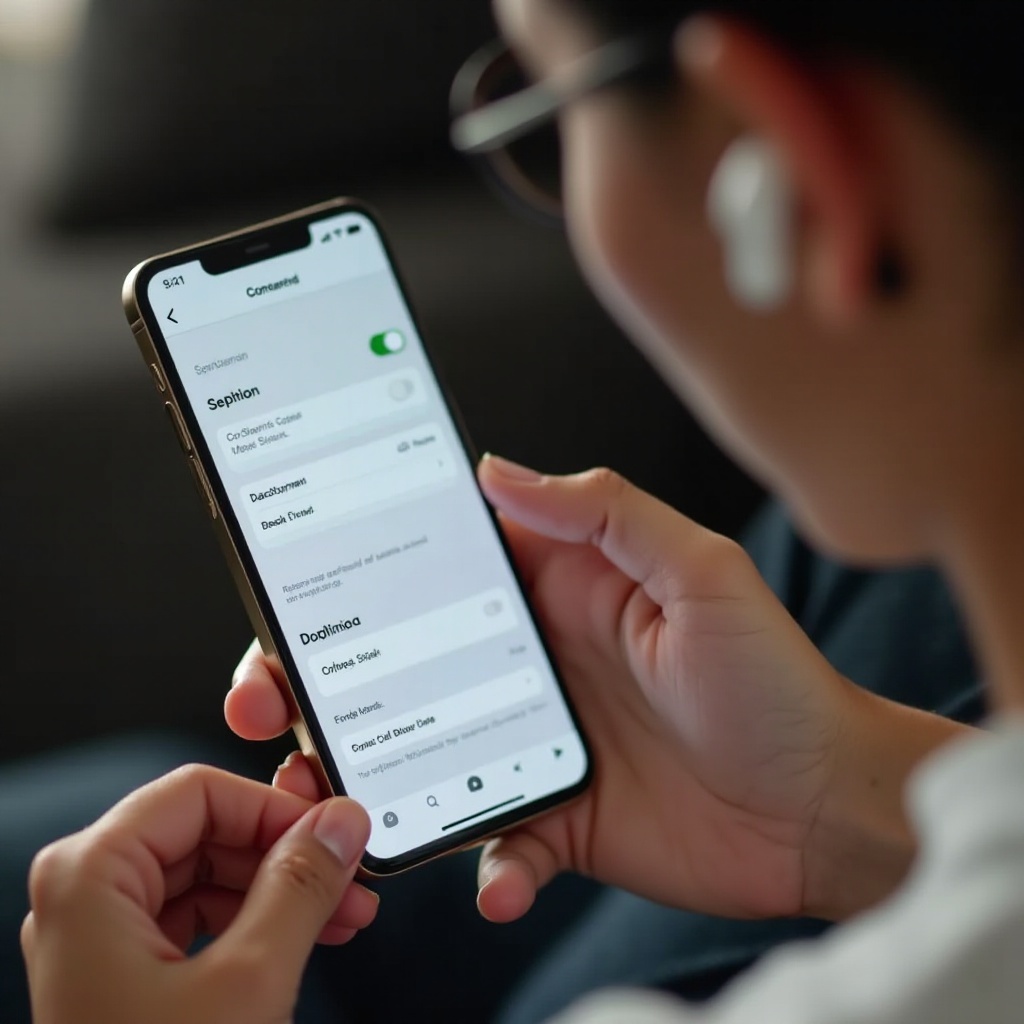
Troubleshooting steps are vital to maintain AirPods’ top-notch audio quality on Android.
Connectivity Problems and Solutions
- If sound drops occur, try re-pairing AirPods or rebooting Bluetooth.
- Keep both the device and AirPods adequately charged for a steady connection.
Updating Software for Better Performance
- Regularly check for software updates on your Android device.
- Update AirPods firmware to the latest version for improved compatibility.
By addressing these issues, you ensure AirPods maintain the sound quality you expect. Let’s conclude with core insights and recommendations.
Conclusion
By utilizing diverse approaches like adjusting device settings, using apps, and leveraging advanced features, you can significantly enhance AirPods’ volume on Android. These techniques empower users to gain better sound quality, ensuring headphones deliver an impressive audio experience. Experimenting with these methods will help you find the best fit for your listening preferences.
Frequently Asked Questions
Why is my AirPods volume so low on Android?
AirPods are optimized for Apple devices, potentially causing lower volume on Android. Adjusting settings can improve loudness.
Can I use any app to increase AirPods volume on Android?
It’s best to use trusted apps like Volume Booster GOODEV or Equalizer FX for safe volume enhancement.
Are AirPods fully compatible with Android devices?
AirPods work with Android via Bluetooth, but some exclusive Apple features may not be available.