Introduction
To unlock Alexa’s full potential, connecting it to your WiFi network is a must. It’s through this connection that Alexa can perform its wide range of functions, from streaming music to controlling smart home devices. This article will guide you through a comprehensive setup process, ensuring your Alexa is smoothly integrated and ready to assist around your home.
Understanding Alexa and WiFi Connectivity
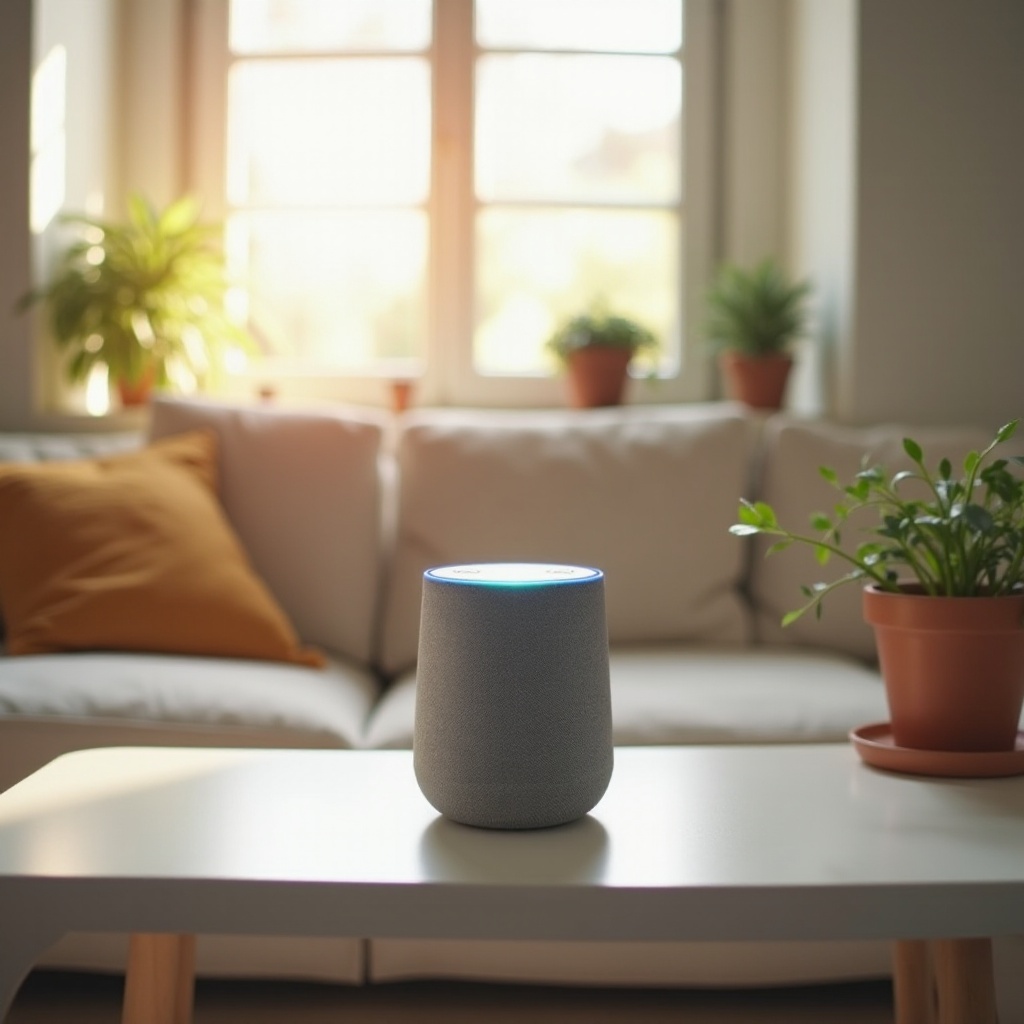
WiFi connectivity is essential for Alexa to function optimally. By being connected to the internet, Alexa can process voice commands, retrieve information, and control smart home devices efficiently.
-
Importance of Connecting Alexa to WiFi: A stable WiFi connection allows Alexa to access and execute a variety of skills, making it a powerful tool in managing daily tasks.
-
How WiFi Enhances Alexa’s Capabilities: When connected to WiFi, Alexa gains the ability to interact with other smart devices, handle multiple commands, and provide real-time updates more effectively.
By understanding these fundamentals, you’re better prepared for a seamless setup process. Let’s proceed by gathering the necessary equipment and ensuring your network’s compatibility with Alexa.
Preparing for the Setup Process
Before diving into the setup steps, it’s important to ensure you have everything needed to connect Alexa to WiFi smoothly.
-
Gathering Necessary Equipment: Make sure you have a smartphone or tablet with the Amazon Alexa app, and know your WiFi network name and password.
-
Ensuring Compatibility with Your Network: Alexa is compatible with dual-band WiFi 802.11a/b/g/n networks at 2.4 GHz and 5 GHz. Make sure your router is running on one of these frequencies.
Now that all preparations are in place, let’s go step-by-step through the process of connecting Alexa to your WiFi network.
Step-by-Step Guide to Setting Up Alexa to WiFi
Follow these instructions to establish a successful connection between your Alexa device and your WiFi network:
- Download and install the Amazon Alexa app from your device’s app store.
- Register your Alexa device through the app by selecting ‘Devices’, then ‘Add Device’. Choose your Alexa model from the list and follow on-screen directions.
- Configure the WiFi settings on Alexa:
- Plug in your Alexa device and wait for the orange light ring indicating setup mode.
- In the app, select your WiFi network from the list and enter the corresponding password.
If all steps are followed correctly, your Alexa should now be connected to your WiFi. However, should issues arise, the following section will help troubleshoot common problems.
Troubleshooting Common Issues
When encountering connectivity problems with Alexa, there are a few steps you can take to resolve most issues:
-
Connectivity Problems and Solutions: If Alexa won’t connect, ensure your device is within range of your WiFi router. Restart both Alexa and your router to reset connections.
-
Network Compatibility Concerns: Confirm that your router operates on a compatible frequency with Alexa. If problems persist, try both the 2.4 GHz and 5 GHz options.
-
Updating Device Software: Regular updates are crucial for resolving connectivity issues. Check for and install updates for both the Alexa app and your device.
Resolving these issues will ensure your Alexa’s performance is optimized. Next, let’s look at how to further enhance your Alexa’s connectivity.

Tips for Optimizing Alexa’s WiFi Performance
To maintain reliable performance from your Alexa device, consider these tips:
-
Ideal Placement for Optimal Signal: Position your Alexa in a central location, free from obstructions like concrete walls or metal objects that can disrupt signal strength.
-
Enhancing Network Security and Speed: Secure your WiFi with a robust password and limit the number of connected devices to minimize traffic and interference.
With these optimizations, your Alexa device should maintain strong connectivity. Let’s explore some of the additional features that become available once Alexa is online.
Exploring Additional Features of Alexa Once Connected
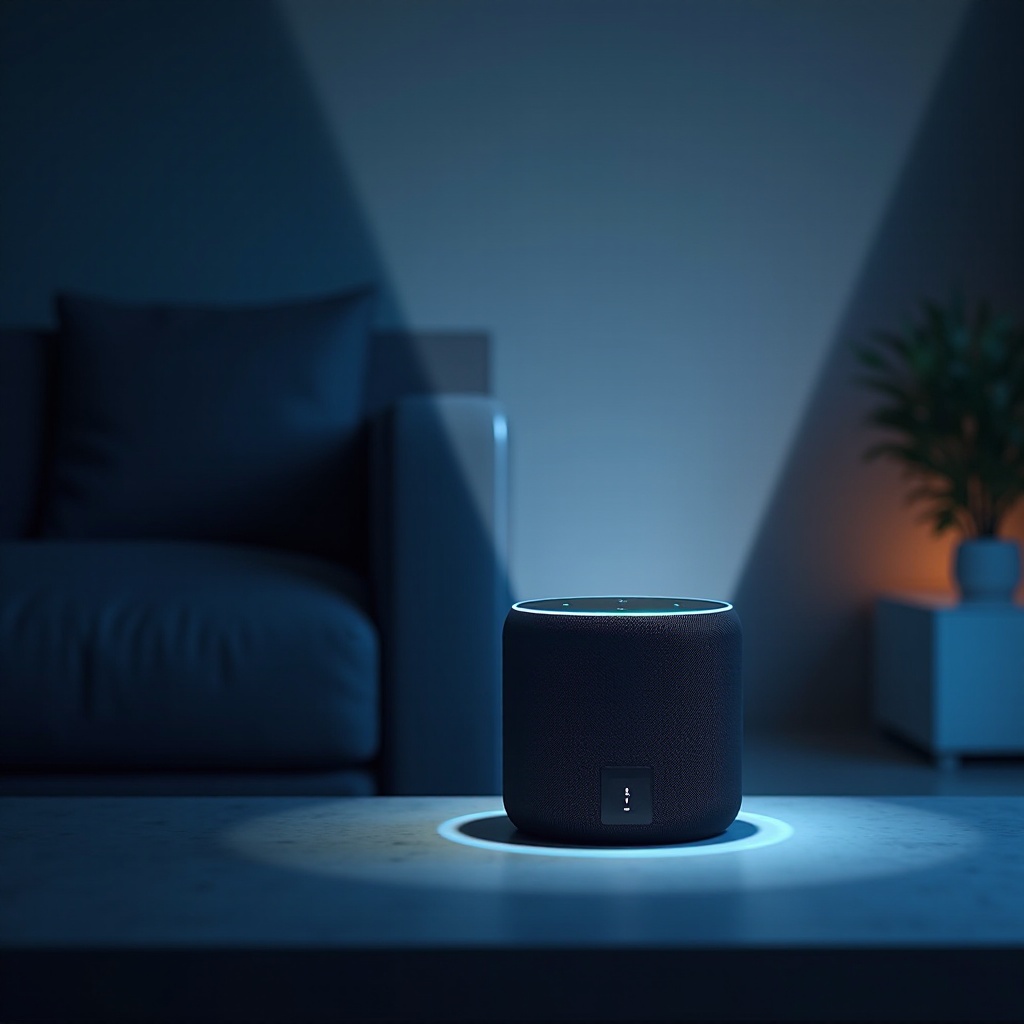
Once your Alexa is connected to WiFi, numerous features and enhancements become accessible:
-
Discovering New Skills and Commands: Explore thousands of available skills in the Alexa app, from smart home commands to learning and entertainment options.
-
Integration with Smart Home Devices: Seamlessly connect and control other smart devices in your home, such as lights, thermostats, and security systems, through Alexa.
These features highlight the versatility and convenience of a WiFi-enabled Alexa device. In conclusion, connecting your Alexa to WiFi is not only a straightforward process but also an essential one for maximizing its potential.
Conclusion
Ensuring your Alexa device is connected to WiFi is crucial for taking full advantage of its capabilities. By following the outlined setup steps, troubleshooting any issues, and optimizing performance, your Alexa will be an invaluable part of your daily routine, enhancing your home experience significantly.
Frequently Asked Questions
How Do I Reconnect Alexa to a New WiFi Network?
In the Alexa app, navigate to WiFi settings under ‘Devices’, select your new network, and enter the password.
What Should I Do if Alexa Is Not Finding My WiFi Network?
Ensure your WiFi is functioning correctly and that Alexa is in setup mode with an orange light. Restart your router and Alexa device.
Can I Connect Multiple Alexa Devices to the Same WiFi Network?
Yes, you can connect multiple Alexa devices to the same network. Each device requires individual setup via the Alexa app.