Introduction
Connecting Sonos speakers with your Samsung TV can elevate your entertainment experience, offering superior audio that complements the stunning visuals of your TV. Combining the lush soundscapes of Sonos with the sharp imagery of Samsung TVs creates a home theater experience unlike any other. This guide will explore key compatibility factors, installation processes, and provide solutions to common issues to ensure an optimal setup for all users.
Understanding Sonos and Samsung TV Compatibility
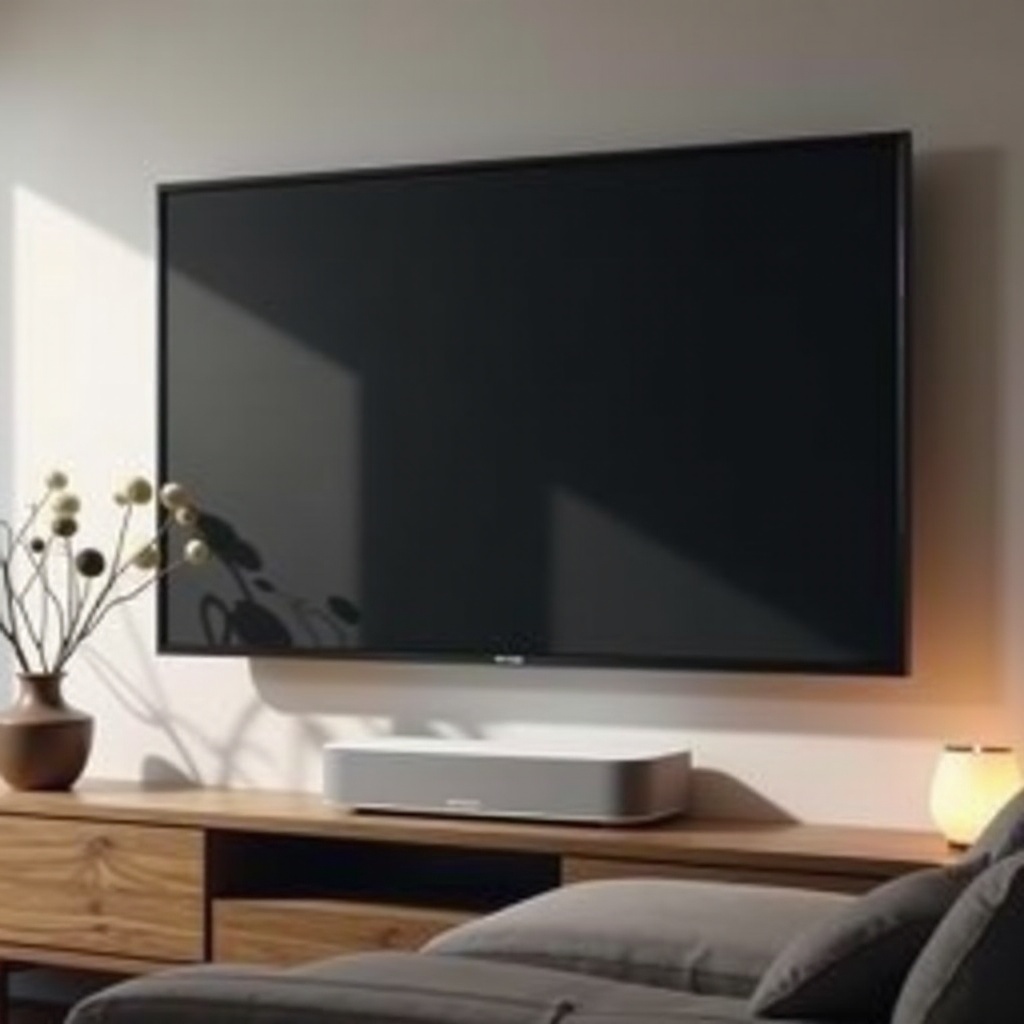
Before setting up your system, it’s crucial to identify compatible Sonos and Samsung models to ensure seamless integration and maximum performance.
Compatible Sonos Models
– Sonos Beam: Perfect for smaller spaces while delivering powerful sound.
– Sonos Arc: Offers premium audio quality ideal for cinematic experiences.
– Sonos Playbar: Known for its dynamic sound and straightforward design.
– Sonos One: Versatile use, often paired for stereo effects.
Best Samsung TV Models for Sonos Integration
– Samsung Frame TV: Aesthetic appeal with top-notch visual capabilities.
– Samsung QLED Series: Known for vibrant colors and smart technology.
– Samsung Crystal UHD: Balances cost-effectiveness with excellent display quality.
Understanding which models pair best helps streamline the setup process and enhances the audiovisual experience. With this clarity, you’re ready to proceed with connecting your devices.
Step-by-Step Guide to Connecting Sonos to Samsung TV
Establishing the connection between your Sonos speakers and Samsung TV is straightforward with this step-by-step guide.
- Necessary Equipment and Preparations
- HDMI cable or optical audio cable
- Sonos App on your mobile device
-
Ensure the Samsung TV has the latest firmware update
-
Connecting via HDMI ARC
- Connect one end of the HDMI cable to your Sonos device.
- Plug the other end into the HDMI ARC port on your Samsung TV.
-
Go to TV settings and set audio output to HDMI ARC.
-
Alternative Connection Methods
- Use an optical audio cable if HDMI ARC is unavailable.
- For other TVs, adjust audio settings to output through the optical port.
Next, we’ll dive into optimizing your setup to ensure the best listening experience possible.
Optimizing Your Audio Setup
After connecting your devices, it’s time to tweak the settings and speaker placement to enhance sound quality.
- Adjusting Sonos and TV Settings for Best Sound
- Use the Sonos app’s Trueplay feature to calibrate speakers.
-
Disable added sound enhancements in Samsung TV settings to let Sonos handle audio details.
-
Positioning Speakers for Optimal Performance
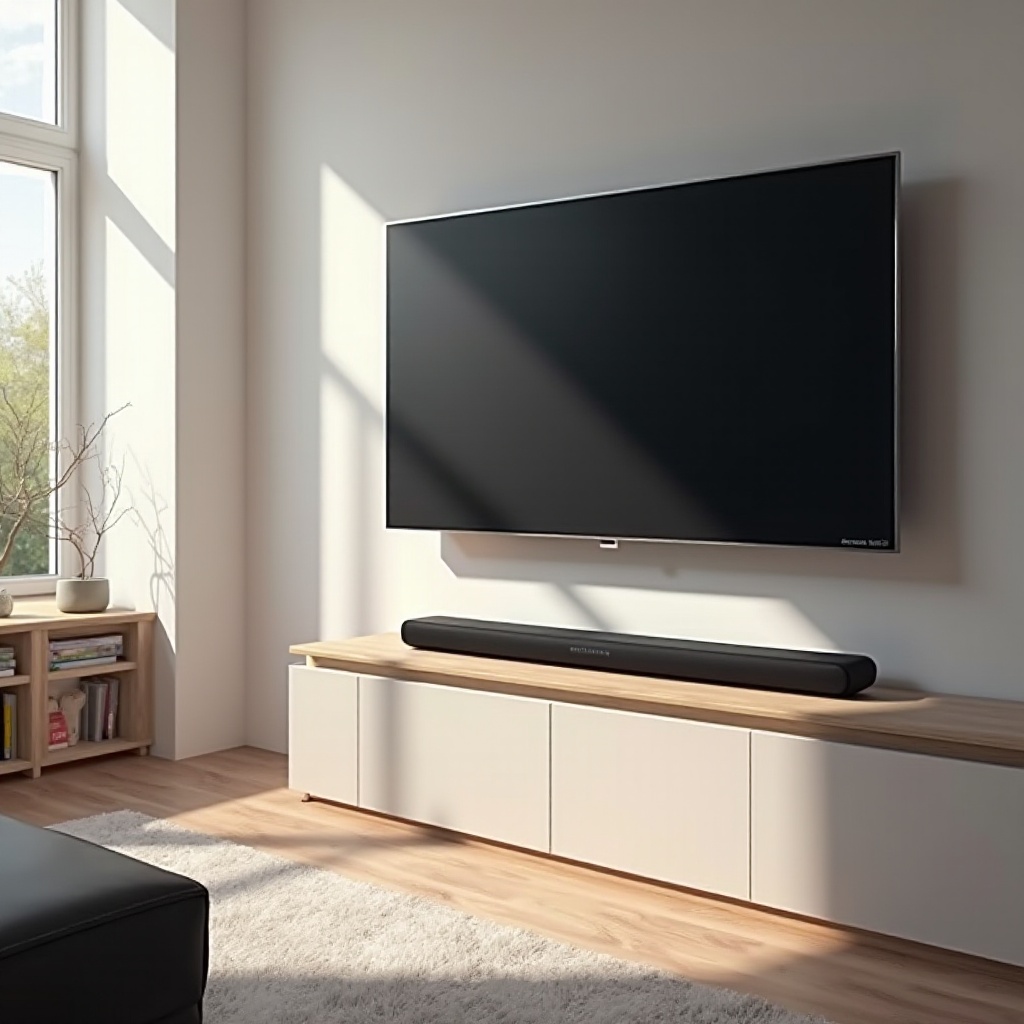
- For soundbars, place them directly under the TV.
- Surround speakers should be positioned at ear level around the seating area for full effect.
With an optimized sound setup, let’s explore advanced features that integrate with smart home technology.
Advanced Features of Sonos with Samsung TV
Enhance your audio-visual setup by exploring advanced features that add convenience and functionality.
- Using Voice Control and Smart Features
- Enable Google Assistant or Alexa on Sonos for hands-free control.
-
Use simple voice commands for volume adjustments and music playback.
-
Integrating with Other Smart Home Devices
- Connect Sonos to other smart home systems via a central hub.
- Automate things like turning on the TV when Sonos plays music.
Should any issues arise, the following section will address common problems and solutions.
Troubleshooting Common Issues
Even with cutting-edge technology, issues might surface. Here’s how to address frequent problems:
- Delay and Sync Problems
- Navigate the Sonos app to tweak audio delay settings.
-
Confirm your TV firmware is current and up-to-date.
-
Connectivity Concerns
- Check all cable connections and ports are correctly utilized.
- Restart both the Sonos system and Samsung TV to rectify minor connectivity glitches.
These troubleshooting tips will help maintain an uninterrupted audio experience. For persistent issues, reaching out for professional support may be necessary.
Conclusion
Bringing together Sonos’ high-quality audio with Samsung’s visual excellence turns your ordinary TV time into an extraordinary experience. Whether it’s for a cinematic adventure or just regular programming, this integration ensures quality and satisfaction. Keep exploring different configurations to find what suits your space and preferences best.
Frequently Asked Questions
Can I connect Sonos speakers wirelessly to my Samsung TV?
Currently, Sonos connects to Samsung TVs using wired methods such as HDMI ARC or optical cables.
What should I do if there’s a delay between the video and sound?
Use the Sonos app to adjust audio delay settings and ensure your TV’s firmware is up-to-date.
How can I control my Sonos speakers with my Samsung TV remote?
Setup remote control through the Sonos app by following the prompts under ‘Remote Setup’.