
Introduction
Encountering an unresponsive application on Windows can be a source of frustration. Whether working on an important project or enjoying a gaming session, an application freeze can disrupt your flow. Knowing how to effectively force close these applications ensures you maintain control over your tasks and projects. In this detailed guide, we’ll explore various methods you can utilize – from built-in system tools to third-party solutions – to regain control efficiently and effectively.
Taking hold of unresponsive applications not only helps in maintaining your productivity but also shields your computer from potential hazards linked to system freezes. Frequent knowledge of efficient methods to force close applications can make a significant difference in your overall computing experience.
Why You Might Need to Force Close an Application
Applications often become unresponsive due to myriad reasons, such as software bugs, insufficient system resources, or internal conflicts between different programs. When an application hangs, it irritates users by slowing down the system or interrupting other tasks.
Force closing is critical because it ensures that problematic applications do not impede your workflow. Aside from freeing up system resources, it prevents potential data corruption or loss. However, using this method demands caution, as abrupt closures might lead to unsaved data loss. Therefore, understanding when and how to employ these methods will safeguard both your workflow and data integrity. Moving forward, let us explore practical methods to force close applications effectively.
Method 1: Using Task Manager
Accessing Task Manager
The Task Manager is a trusted built-in utility in Windows, known for its efficiency in managing running applications and system resources.
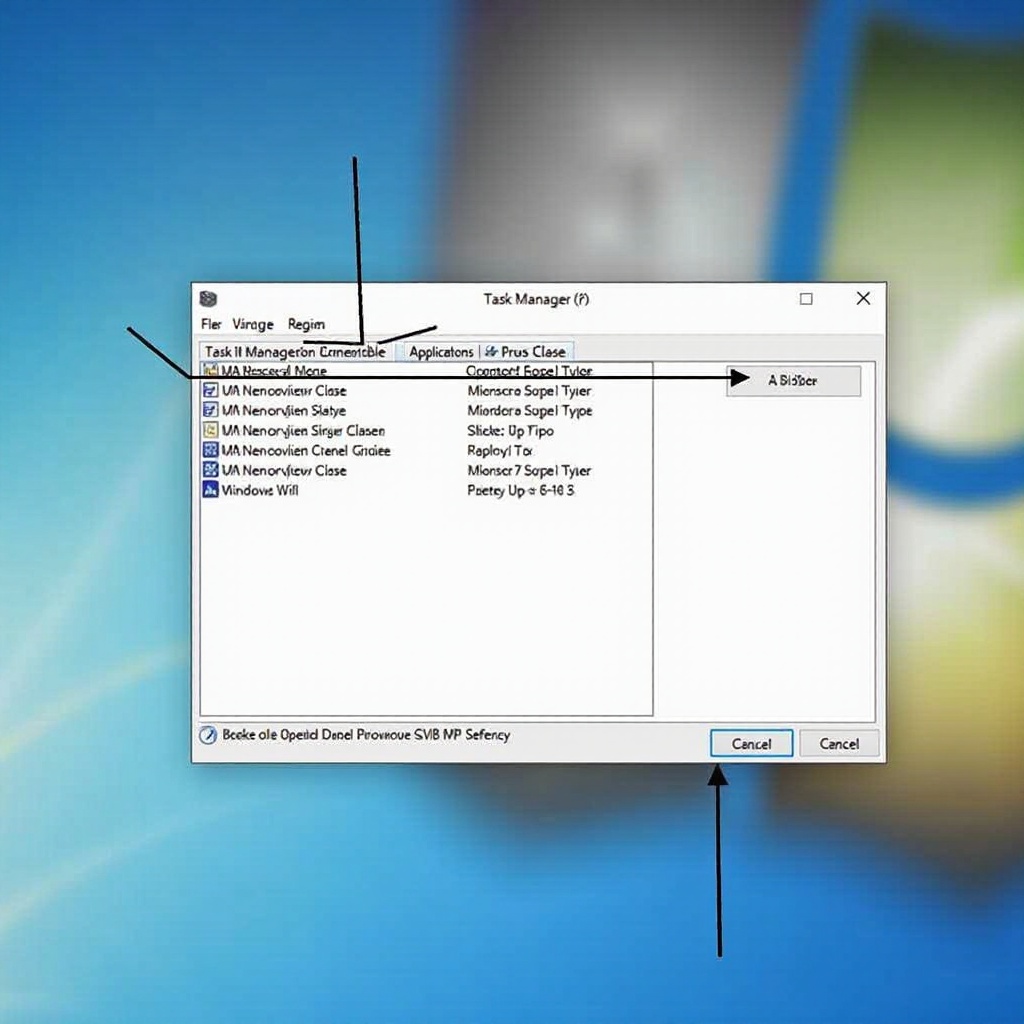
– Press Ctrl + Shift + Esc to open Task Manager directly.
– Alternatively, right-click the taskbar and select ‘Task Manager’.
– You can also hit Ctrl + Alt + Delete and choose ‘Task Manager’ from the options.
Identifying the Unresponsive Application
Upon opening Task Manager, a list of running applications and processes appears.
– Navigate to the ‘Processes’ tab to view currently active programs.
– Look for the application displaying a ‘Not Responding’ status. This indicator helps in identifying the problematic application.
Steps to Force Close
After identifying the culprit:
- Click on the unresponsive application listed under the ‘Processes’ tab.
- Hit the ‘End Task’ button at the bottom right of the Task Manager window.
- Confirm the action if prompted, and the application will close.
Having understood this method, let’s delve into an alternative technique for those who seek a more command-line-oriented solution.
Method 2: Using Command Prompt
Opening Command Prompt
The Command Prompt offers a more technical approach to closing applications, which is quite useful when Task Manager encounters responsiveness issues.
- Press
Win + Rto open the Run dialog, then typecmdand pressEnter. - Alternatively, search for ‘Command Prompt’ in the Start Menu and run it as administrator.
Utilizing ‘taskkill’ Command
The taskkill command stands out as a powerful tool for terminating processes without requiring a graphical interface.
- Once in the Command Prompt, type
tasklistto view a list of all running processes. - Note down the exact name or the Process ID (PID) of the application you wish to close.
Executing the Command
To force close the application:
- Type
taskkill /IM application.exeto close using the application name, - Replace
application.exewith the actual name. - If using the PID, type
taskkill /PID pid_number. - Replace
pid_numberwith the actual PID. - Add the
/Fparameter to forcefully terminate the process if it refuses to close normally.
The Command Prompt approach being more intricate lays the foundation for the usage of an even more advanced tool, Windows PowerShell.

Method 3: Using Windows PowerShell
Launching Windows PowerShell
Windows PowerShell is a robust task automation tool that offers further control over your system processes.
- Open PowerShell by searching it in the Start Menu.
- Right-click and choose ‘Run as Administrator’ for elevated permissions.
PowerShell Commands for Application Closure
PowerShell simplifies the process of closing unwanted applications via straightforward commands.
- Use
Get-Processto list all running processes. - Identify the target process by its name or ID.
Implementing Commands
To close an application:
- Enter
Stop-Process -Name 'application'if using the process name. - Replace ‘application’ with the actual name.
- Or use
Stop-Process -ID pid_numberwhen dealing with process IDs. - Substitute
pid_numberwith the real ID. - This command swiftly ends the process, but caution is advised to prevent data corruption.
Exploring these native tools enriches knowledge, yet it is essential to explore external solutions for an enhanced experience.
Third-Party Tools and Software
Overview of Process Management Software
Beyond native Windows tools, third-party applications come with additional features for managing processes. Programs like Process Explorer provide in-depth insights, allowing users to oversee system performance, memory usage, and thread activity.
Benefits of Third-Party Applications
These tools provide user-friendly interfaces and real-time monitoring, enhancing both user experience and application management. They allow for detailed analysis, notifying users about which applications may become unresponsive, thus facilitating preventive maintenance. However, selecting reliable software is crucial to avoid malware risks and ensure it does not consume unnecessary system resources.
These methods and tools are highly beneficial, but preventing application freezes can prove to be even more advantageous.
Preventing Application Freezes in the Future
Regular Software Updates
Keeping your software up-to-date is a significant preventive measure against glitches. Developers release patches to fix bugs and improve performance, so ensuring your applications and operating systems are current is critical.
System Maintenance Tips
A well-maintained system reduces the likelihood of crashes. Regularly clear temporary files, defragment your hard drive, and ensure sufficient RAM. Periodic disk cleanups and routine checks for malware can greatly enhance system stability.
Taking a proactive approach towards preventing application freezes ensures minimal disruptions in your daily operations.
Common Issues and Troubleshooting
Persistent Problems with Application Closure
If applications constantly freeze, it might indicate deeper system issues. Run diagnostic tools to pinpoint hardware or software conflicts, and consider seeking expert help.
Data Management Considerations
Before force closing, understand the risk of data loss. Always save work frequently and maintain regular backups—either through system tools or cloud services—to safeguard your data.
Arming yourself with these preventive and troubleshooting tips fortifies your computer against any future hiccups.
Conclusion
Understanding how to force close applications on Windows empowers users to handle unresponsive programs effectively. From Task Manager to Command Prompt and PowerShell, these methods present various options contingent on user proficiency. Moreover, proactive measures like updates and system care can significantly reduce the occurrence of such issues, ensuring a smooth computing experience for everyone involved.
Frequently Asked Questions
What should I do if the application won’t close after multiple attempts?
If standard methods fail, rebooting your system is often the surest way to reset all processes. Persistent issues may indicate underlying system problems that need advanced troubleshooting.
Can force closing an application cause data loss?
Yes, force closing can result in unsaved changes being lost. Therefore, it’s advised to save your work regularly and only force close when necessary.
Are there risks associated with using third-party applications to manage processes?
While many third-party tools offer enhanced functionality, there’s a risk if you choose unverified software. Always download from reputable sources to avoid potential malware infections.